Free for MSFS 2020 and 2024

Your flight. Every detail. One screen.

Glidepath reads your flight straight from Microsoft Flight Simulator and puts it live on your iPad, phone or second screen. When you park, you get a real debrief of the takeoff, the approach and the landing.

  • Free
  • Windows 10 and 11
  • MSFS 2020 and 2024
  • iPad, phone, PC
Loading the live app…
9:41
Thursday 5 November

Demo replay

Built on open data: OurAirportsSimBriefVATSIMIVAOaviationweather.govOpenStreetMapEsri World ImageryRainViewer

Online right now … pilots and … controllers on VATSIM … pilots and … controllers on IVAO Live from the networks' public data. Glidepath shows them all on your map.

Everything on one screen

Built for the hour you spend at FL360, and the thirty seconds before touchdown.

Every timing, the way airlines keep them

Off block to on block, scheduled against estimated against actual, with local times from your SimBrief plan.

OUT1001Zoff block
OFF1006Ztake-off
TOC1018Ztop of climb
TOD1020Zest
ON1037Zest
IN1041Zest

From the demo flight
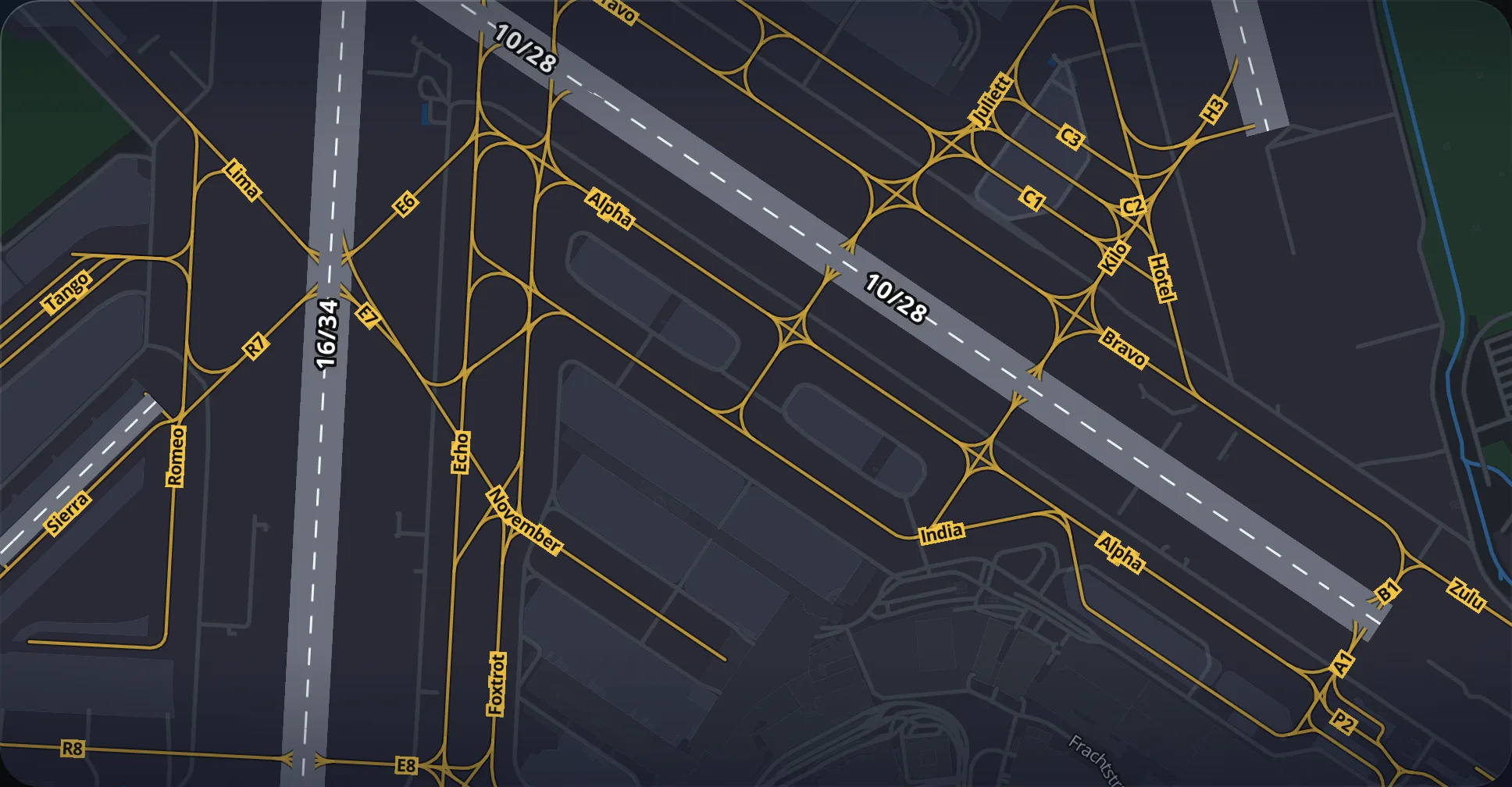
Glidepath map of Zurich airport: runways 10/28 and 16/34 with every taxiway named in yellow

Airport maps you can taxi by

Every taxiway named, every runway numbered, from OpenStreetMap. Zurich, as the app draws it. Plus sharp satellite imagery, your route and trail, and VATSIM, IVAO and SayIntentions traffic.

A copilot that talks like one

When do we start down?

CopilotTop of descent in about 12 minutes, around 1020Z. Plan on 2,000 fpm for a 3° path at this groundspeed.

Fuel?

Copilot5,480 kg on board. At this burn we land with about 5,380, 130 above plan.

Answers from the demo flight. Works with no AI service at all; hook up a free model on your PC for open questions.

Glance mode

Prop your iPad on the desk. Big numbers, screen kept awake, and spoken callouts from 2,500 ft down to 10.

Everyone else in the sky

Switch on the networks you fly with. Each gets its own colour on the map.

  • VATSIMHuman ATC and pilots
  • IVAOHuman ATC and pilots
  • SayIntentionsPilots on AI ATC

A logbook that keeps itself

Every flight saves itself when you park. Your hours, your average landing, your records, and a year of flying at a glance, on every device you sign in to.

Hours flown41h 20m
Flights23
Average landing168 fpm
Airports17
  • EGLL → EGCCA320, 168 nm, 0h 45mSmooth140 fpmA+
  • OMDB → OOMSB738, 182 nm, 1h 05mFirm310 fpmB
  • EGKK → LPFRA20N, 1,040 nm, 2h 51mNormal205 fpmA

Example numbers to show the layout. First logbook row is the demo flight; the other two are examples.

Remote control and live camera

Fly from the sofa. Free.

Set the autopilot, flick the lights, start the engines and watch the cockpit from your iPad, phone or laptop. No subscription, nothing locked.

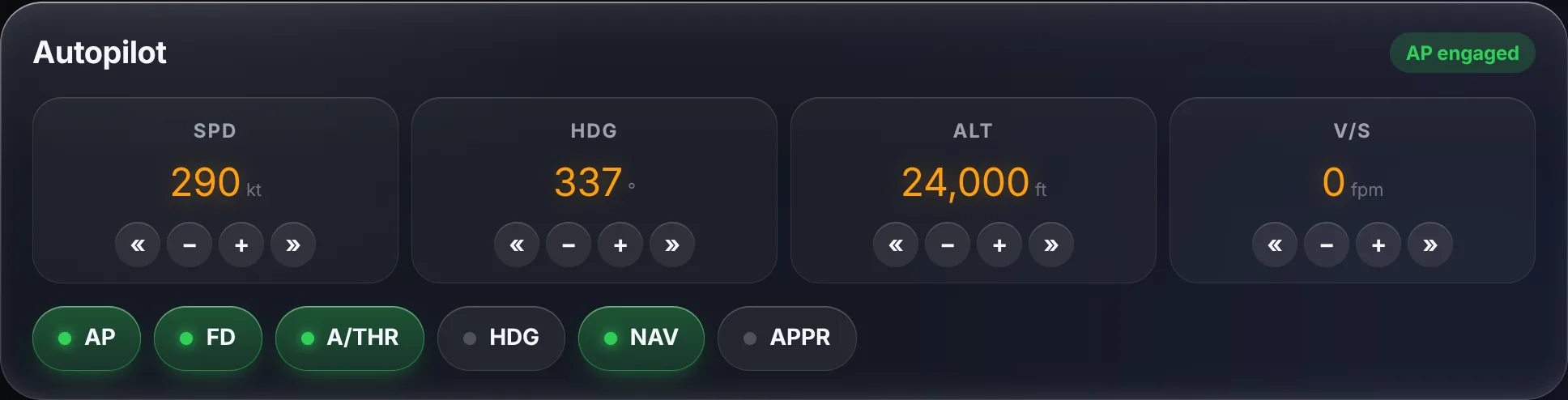
Glidepath autopilot panel: speed 290 kt, heading 337, altitude 24,000 ft, AP, FD, A/THR and NAV engaged
Autopilot: speed, heading, altitude and vertical speed, plus every mode. Tap a number to type it.
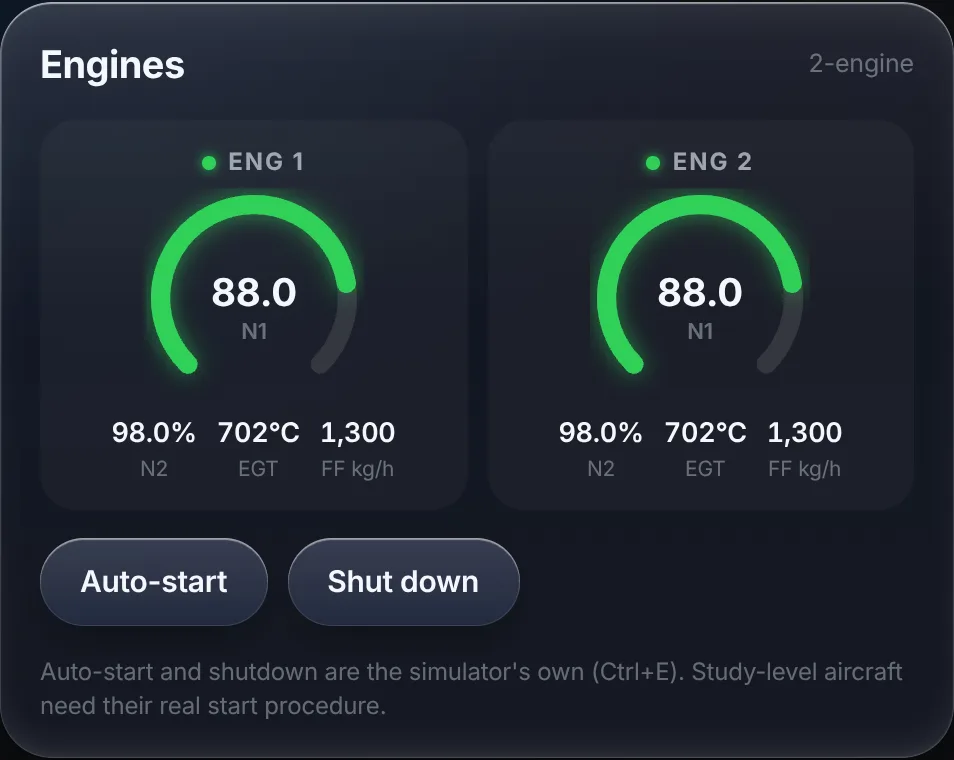
Glidepath engine panel: two engines at 88% N1 with N2, EGT and fuel flow
Engines: N1, N2, EGT and fuel flow, live. Auto-start and shutdown on the ground.

Live camera

Your sim PC shares its screen, and your iPad watches it over your Wi-Fi, device to device. Switch between cockpit, outside and drone views from the couch.

Every button tells the truth

Glidepath checks the simulator's own data after each tap. You see Done only when the sim actually changed, and a plain warning when an aircraft ignores a control.

  • Lights: beacon, strobes, landing, taxi, nav, logo, wing
  • Parking brake, gear, flaps and pause
  • Safety checks: no gear up on the ground, no engine shutdown in the air

Uses the simulator's standard controls. Default aircraft respond to all of them; PMDG, Fenix and FSLabs run their own systems and may ignore some. Built and checked on our side; first tests in the sim are happening now.

Gate to gate

Walk away from the desk. Glidepath tells you when to come back.

  1. PreflightLoad your SimBrief plan. Checklists open for the phase you're in, and tick themselves from the sim.
  2. Pushback and taxiRecording starts by itself. Beacon off with engines running? You'll hear about it.
  3. Take-offRotation, lift-off and climb measured from the roll to 1,500 ft.
  4. Cruise"Cruise reached", then top of descent 10 minutes out, ATC coming online at your destination, and the weather radar ahead.
  5. Descent and approach10 minutes to landing, landing lights at 10,000 ft, and a stable-approach check at 1,000 and 500 ft.
  6. On blocksYour debrief arrives as a message. One tap opens it: grades, block and air time, fuel, and what to try next time.
GlidepathTop of descent in 10 minutesTime to brief the arrival and set up the approach.
GlidepathEGCC_APP is onlineVATSIM, 118.580.
Glidepath10 minutes to landingAbout 10 minutes to touchdown at EGCC.
GlidepathYour debrief is readyFlight saved to your logbook. Tap to see how it went.Open debrief ›

The real wording the app uses. Shown on screen, read out loud if you like, and as notifications when Glidepath is in the background.

The debrief

Park at the gate and find out how it actually went.

Glidepath measures your takeoff from the roll to 1,500 ft, checks your approach at 1,000 and 500 ft, and describes your touchdown in the words pilots use. Drag the slider to feel the difference.

Touchdown Smooth
140fpm

Smooth touchdown at 140 fpm. Exactly what you want.

The same wording the app uses after every landing.

From the demo flight

Good flight. Tidy from start to finish.

A smooth takeoff and a smooth landing at 140 fpm on 23R.

  • ✓Smooth rotation at 2.7° a second, right where it should be.
  • ✓Climb attitude of 15°, in the normal 12–18° range.
  • ✓Stable at 1,000 ft: 140 kt, 699 fpm down, gear down.
  • ✓In the touchdown zone, 1,671 ft in, on the centreline.
TakeoffSmooth, by-the-bookA+
Climb and cruiseWithin limits✓
ApproachStable✓
LandingSmooth, 140 fpmA+

When it goes wrong, it says so

  • !You snatched the rotation at 7° a second. That's how tail strikes happen; pull steadily, about 2–3.5° a second.
  • !Pitched up too far after lift-off, 24° nose up. Follow the flight director, normally 12–18°, or the speed bleeds away.
  • !Not stable at 1,000 ft: gear still up. Most airlines would call a go-around there.
  • !Hard landing at 720 fpm. Beyond about 600 fpm (10 ft/s) most airliners need a hard-landing inspection.

Real lines the engine writes for flights we generated to be rough.

Demo

Heathrow to Manchester in two minutes.

This is the real flight engine running over a synthetic test flight we generated to test it. Watch it spot each phase, predict the top of descent, and grade the landing. The live card on the phone above follows along.

Altitude against distance flown, from London Heathrow to Manchester. The flown path is drawn as the replay advances.
00:00

    Your month, in your inbox

    A short email on the 1st about how you flew.

    Hours, landings, your best flight, how it compares with last month, and the one thing worth working on. Written from your own flights, sent to the email you signed up with. Turn it off any time.

    • Sign in on as many devices, and as many accounts, as you like.
    • Signed-in devices find your PC on your Wi-Fi by themselves.
    • Only flight summaries go to your account. Live telemetry stays on your PC.
    GlidepathYour October in the air: 1h 30m, 2 flights
    GLIDEPATH · OCTOBER 20261h 30m2 flights, 336 nm

    You flew 2 flights in October, 1h 30m block to block over 336 nm.

    Your landings averaged 140 fpm, which is smooth. The best was 140 fpm into EGCC, graded A+.

    Longest flight0h 45m, EGLL to EGCC
    Most flownA320, 1h 30m
    Landings by feelSmooth 2

    Written by the real email code from two test flights.

    Set up in two minutes

    No account. No Community folder. Your flight stays on your Wi-Fi.

    1. 1

      Run the Bridge

      Run the installer on your sim PC, then open Glidepath Bridge from the desktop. It finds Microsoft Flight Simulator by itself.

    2. 2

      Type the code

      Open the Glidepath app on your iPad and type the 6-digit code shown on your PC. That's it: you're connected over your Wi-Fi.

    3. 3

      Fly

      Recording starts when you push back. When you park, your debrief is waiting.

    No black box

    A landing grade you can check.

    Sink rate alone doesn't tell you how good a landing was. Glidepath scores seven things against limits for your type of aircraft. A factor without data is left out rather than guessed, and a hard landing caps the grade however good the rest was.

    Scoring for a narrow-body jet such as the A320 or 737, straight from the engine.
    FactorFull marksWeightDemo landing

    Aircraft

    Which aircraft work, honestly.

    Every aircraft gives Glidepath its position, altitude, speeds and attitude through the simulator's standard data, so tracking and the landing debrief work with all of them. Add-on extras are listed separately. Nothing here is marked tested until it has been flown.

    AircraftTracking and debriefAdd-on extrasNotes
    Default MSFS 2020 / 2024 aircraftBuilt, testing nowNone neededUses the standard simulator data directly.
    Fenix A319 / A320 / A321Built, testing nowEFB and MCDU in Cockpit tools: built, not yet triedFuel is read from the standard data; Fenix may report it differently.
    FSLabs A321Built, testing nowEFB in Cockpit tools: built, not yet triedUses port 23032 by default; another port can be added in the app.
    FlyByWire A32NX / A380XBuilt, testing nowMCDU through SimBridge: built, not yet triedStart SimBridge for the MCDU.
    PMDG 737Built, testing nowCDU on iPad: plannedNeeds PMDG's SDK switched on in its options file.
    PMDG 777Built, testing nowCDU on iPad: plannedSame as the 737.
    iniBuilds A350Built, testing nowNone planned yetStandard data only.

    Tested flown and checked · Built, testing now written against the documentation, first real flights under way · Planned not built yet

    Honest status

    What works today, and what doesn't yet.

    Glidepath is early. If something isn't built, or hasn't been tested with a real simulator, this list says so.

    Built and tested

    • Flight phases, from preflight to on blocks, including pauses, bounces and go-arounds.
    • Debrief of takeoff, handling, approach and landing, in plain words.
    • Landing grades from seven factors, aircraft-aware, all thresholds published above.
    • Every timing, scheduled against estimated against actual.
    • Copilot answers, alerts and spoken callouts.
    • Recording and logbook on your PC, resumed after a sim restart, with career totals.
    • The app on iPad, iPhone, Android, Mac and PC, in dark and light mode.
    • Glideslope messages at each stage: cruise reached, top of descent, approach, touchdown.
    • Connecting by code: type the 6-digit code from your PC into the app.
    • Flight replay of any recorded flight, on the map and in 3D, with speed control.
    • Checklists for Airbus and Boeing style flying, the right one opening for your phase. Simplified for sim use, not copied from any manual.
    • Badges earned from your own logbook: butter landings, long haul, night landings, airports visited and more.

    Built, waiting for real-world testing

    • Microsoft Flight Simulator 2020 and 2024. Written against Microsoft's documentation; first real test flights are happening now.
    • The Windows app. Packaged and checked, not yet run on many PCs.
    • SimBrief, weather, VATSIM, IVAO and SayIntentions traffic and ATC, rain radar, METAR weather dots, aircraft photos. Built against each service's published format; VATSIM, IVAO and radar checked against the live feeds.
    • Cockpit tools: Fenix and FSLabs EFBs, the GSX remote and FlyByWire SimBridge, opened from your PC. Built on each add-on's documented address, not yet tried with every add-on.
    • Airport maps with taxiways, gates and stands, and a 3D chase view over real terrain.
    • Lights messages and reminders (beacon, strobes, landing lights at 10,000 ft). Work with aircraft that use the simulator's standard light switches; some add-ons, like Fenix, run their own and may not report them.
    • Charts for your flight's airports, picked automatically: the FAA's official airport diagrams, SIDs, STARs and approaches for US airports (free, through your Bridge), and one tap to ChartFox or Navigraph everywhere else. Navigraph doesn't let other apps show its charts.
    • Chart map: the look of a navigation chart, with online VATSIM and IVAO centre sectors drawn as their real airspace and D·G·T·A badges for each airport's controllers.
    • Remote control: autopilot, lights, gear, flaps, parking brake, pause, engine auto-start and camera views. Standard simulator controls; each button checks the sim really changed. Not yet tried in the sim.
    • Live camera from your sim PC to your iPad over Wi-Fi. Checked between two browsers; not yet with the sim.
    • Messages for top of descent in 10 minutes, 10 and 30 minutes to landing, ATC online at your airports, and a debrief message that opens the debrief. Also as notifications when Glidepath is in the background.
    • Live airport boards from VATSIM and IVAO, an animated rain radar, and pilot tools (clocks, crosswind, descent, approach path, fuel, converter).
    • Sharper satellite map from Esri World Imagery near airports and cities, with roads and airport markings on top.
    • Accounts: sign up, sign in, several accounts per device, flights synced between devices. Built on Cloudflare and tested locally; live once the service is deployed. The monthly email needs an email service on top.

    Not built yet

    • Native iPhone and iPad app with a Lock Screen Live Activity.
    • PMDG 737 and 777 CDU on your iPad, through PMDG's SDK.
    • Watching away from home over mobile data (needs a small free relay server).
    • Replying to ATC from the iPad, and X-Plane.

    No plans, no tiers

    Free. All of it.

    Other companion apps keep remote control, history and the good bits behind a monthly fee. Glidepath doesn't have a paid version.

    Live map with network traffic and ATC
    Remote control: autopilot, lights, engines
    Live camera to your iPad
    ATC online alerts
    Unlimited logbook, replays and debriefs
    Bridge on as many PCs as you own
    Animated rain radar and METAR
    Live airport boards
    Charts for every flight
    Chart map with online ATC sectors
    Checklists, badges and pilot tools
    iPad, iPhone, Android, Mac and PC

    Made for

    However you fly.

    Long haul

    Cook dinner during a 9-hour cruise. Top of descent and ATC alerts find you; the camera shows the flight deck from the kitchen.

    VATSIM and IVAO

    Every controller and pilot on the map, live boards for your airports, and a message when your centre comes online.

    Landing practice

    Seven-factor grades with the thresholds published, a touchdown diagram and a replay of every approach.

    Second screen

    Put the iPad next to your yoke: map, autopilot, engines and checklists without alt-tabbing.

    Questions

    Good to know.

    Is it really free?

    Yes. There is no paid version and nothing is locked. Glidepath runs on free services, and your flight data stays on your own PC and devices.

    Do I need an App Store app?

    No. Open the app link in Safari on your iPad or iPhone and add it to your Home Screen. It also works in any browser on Android, Mac and PC.

    Which simulators work?

    Microsoft Flight Simulator 2020 and 2024. X-Plane isn't supported yet.

    Will remote control work with PMDG, Fenix or FSLabs?

    Partly. Glidepath uses the simulator's standard controls. Default aircraft respond to all of them; study-level add-ons run their own systems and may ignore some. Every button tells you whether the sim actually changed.

    Can I watch my flight away from home?

    Not yet. Today everything runs over your home Wi-Fi. Watching over mobile data needs a small free relay server and is next on the list.

    Do I need to put anything in my Community folder?

    No. The Bridge talks to the sim through SimConnect, which is built into Microsoft Flight Simulator.

    Is my data private?

    Live telemetry never leaves your network. If you make an account, only flight summaries are stored, so your logbook follows you between devices. Delete your account in the app and it's all gone.

    Windows says it protected my PC. Is that safe?

    Windows shows that for new apps that aren't code-signed yet. Check the file's SHA-256 against the one on this page, then choose More info and Run. The code is open on GitHub.

    Glidepath Bridge for Windows

    For 64-bit Windows 10 or 11 with Microsoft Flight Simulator 2020 or 2024. Free.

    Version
    —
    Size
    About 30 MB
    Installs to
    Program Files, with Start menu and desktop shortcuts. Uninstall from Settings › Apps.
    SHA-256 (installer)
    —

    Prefer no installer? Download the zip (its SHA-256). Open source: read the code on GitHub.

    Installing, step by step

    1. Run the installer. Windows asks for permission once: the installer lets your iPad reach the Bridge through Windows Firewall.
    2. If Windows shows “Windows protected your PC”: that's SmartScreen. It appears for new apps that aren't code-signed yet (signing is coming). You can check the file first: its SHA-256 should match the one on this page. Then choose More info and Run.
    3. Open Glidepath Bridge from the desktop. It shows a 6-digit code.
    4. On your iPad, open the Glidepath app and type the code.
    Something not working?
    • The iPad can't connect: make sure it's on the same Wi-Fi as the PC. If the code isn't found, tap Type my PC's address instead and enter the numbers from the Bridge window, or open glidepath.local:4810 in Safari.
    • The sim isn't found: start MSFS and load into a flight, then run Test MSFS connection from the Start menu and send the report.
    • Anything else: Start menu › Glidepath › Bridge logs, and send the newest log file.

    Sign in to download

    One account for the download, your logbook on every device, and the monthly email.